Capture Settings are set-up separately for each capture channel. Once these settings have been specified, OK or Apply should be clicked. This tab specifies the Data Format for captured data, where separate columns need to be identified to be saved to database columns or for reformatting data. The appearance of the grid depends upon the Data Format and Reformat Data settings on the General tab.
Grid Control Buttons
There are nine buttons used to manipulate the Data Format grid, left to right, note some only appear when needed.
Move Row Up |
Used to move the selected row higher up the grid. |
Move Row Down |
Used to move the selected row lower down the grid. |
Add New Row |
Causes a new blank row to be added at the bottom of the grid. |
Delete Row |
Causes the selected row to be permanently deleted. |
New Columns from Database Table |
Used to read the selected database table definitions or stored procedure parameters, and fill the grid with Column Name, Column Type, Column Length and if it’s Nullable. Note that clicking the New Columns button clears any user data entered in the grid |
Open Sample Log |
Display a file open dialog allowing a Capture Log with sample data to be opened |
Sample Log Up |
Displays and parses the previous Capture Log line. |
Sample Log Down |
Displays and parses the next Capture Log line |
Reparse Sample Data |
Parses the current Capture Log line, usually after the location of the data columns has been changed |
If the grid is empty, or if the database table or stored procedure have been changed, click the New Columns from Table button to fill the grid.
To ease creation of the Data Format, captured data is dynamically parsed in exactly the way it would be when been added to a database table, so you can easily check how the format you specify will identify data columns for the database. The sample data is taken from anything showing in the main capture window, or a specific Sample Log may be opened. The current sample data row is shown both in the grid, and below the grid in different formats.
To edit the columns in the Data Format grid, click on the required box and an edit control of some sort will appear, perhaps a drop down box arrow, an edit field or numeric up/down arrows. Once the edit is complete, click on another box to ensure the edit is saved, losing focus from the grid causes the last edit to be cancelled.
Data Format: Fixed Width Columns
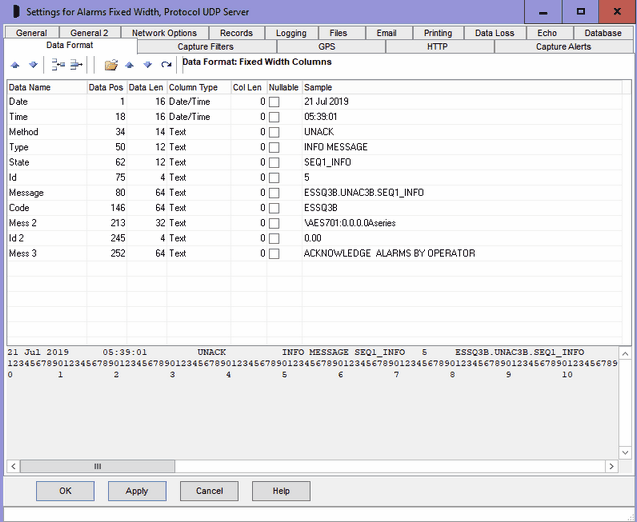
DB Column Name, Column Type, Column Length and Nullable
For adding to database, these columns are pre-filled from the table definition or stored procedure parameters and can not be changed. If the table or SP is changed, click the New Columns from Database button to refresh them, but beware Data Position and Length will be cleared. The Column Type column shows the definition of that column, any attempt to write alphanumeric data to a numeric column will cause a SQL error. Currently, ComCap lets the ADO or the stored procedure raise errors for data type incompatibilities and captured data is not actually validated (except for blanks, see below). Column Type, Column Length and Nullable are ignored for reformatted data.
Data Name
For reformatting data, a single empty format row is created, with Data Name as 'Column 1', the 'Add New Row' button should be clicked to add extra rows as required. If Reformat Data output is tab or comma delimited, you can leave the sequential data names, otherwise sensible names should be specified which will appear in the capture data file. Note that names for Variable Named output can not spaces, since this used as the column delimiter. Unwanted output columns may be deleted or they may be re-ordered.
Data Position and Data Length
These columns are editable, and define the Data Position and Data Length in the fixed width captured data for each database column. The first Data Position on the line is one. If a database column or parameter is to be left blank, set the Data Position to 0. If the Data Length is longer than the column length, the data will be truncated. All data is trimmed to remove leading and trailing spaces.
The same data may be added to more than one column if needed, or in the case of the capture_whole sample table, just a single column is specified for the entire record. The stored procedure could then parse the columns instead. Blank data often causes trouble. If a column contains all spaces, it is converted to a NULL for Date/Time Column Types or if the table allows nulls in the column. Because all stored procedure parameters are Nullable, numeric values are passed as 0 and text as blank.
Sample Data
The panel below the grid shows the current Sample Data line, with a ruler to identify up to 150 columns positions below the data line. The Sample Log Up and Down buttons may be used to select different lines of Sample Data. The Sample Data line is automatically parsed and the identified columns displayed in the grid Sample column, according to the current Data Positions and Lengths. If a Data Position is changed, the Reparse button should be clicked to refresh the Sample column. The Sample columns show Invalid Column if the data can not be parsed.
Use this Fixed Width Columns data format can be seen in several reformat examples at General.
Data Format: Character Separated Columns (CSV)
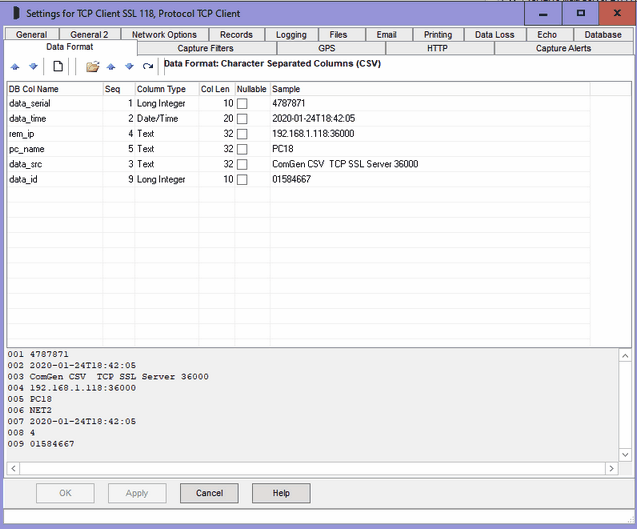
DB Column Name, Column Type, Column Length and Nullable
For adding to database, these columns are pre-filled from the table definition or stored procedure parameters and can not be changed. If the table or SP is changed, click the New Columns from Database button to refresh them, but beware Sequence will be cleared. The Column Type column shows the definition of that column, any attempt to write alphanumeric data to a numeric column will cause a SQL error. Currently, ComCap lets the ADO or the stored procedure raise errors for data type incompatibilities and captured data is not actually validated (except for blanks, see below). Column Type, Column Length and Nullable are ignored for reformatted data.
Data Name
For reformatting data, provided sample data is available, one row is created for each column found, with Data Name as 'Column 1', 2, 3, etc. If Reformat Data output is tab or comma delimited, you can leave the sequential column names, otherwise sensible names should be specified which will appear in the capture data file. Note that names for Variable Named output can not spaces, since this used as the column delimiter. Unwanted output columns may be deleted or they may be re-ordered.
Sequence Number
Character separated columns are identified by simply counting the separators. The Sequence Number column is editable, and is used to define the number for each database column. The first Sequence Number is one. If a database column or parameter is to be left blank, set the Sequence Number to 0. If the column data length is longer than the Column Length, it will be truncated. All data is trimmed to remove leading and trailing spaces.
Blank data often causes trouble. If a column contains all spaces, it is converted to a NULL for Date/Time Column Types or if the table allows nulls in the column. Because all stored procedure parameters are Nullable, numeric values are passed as 0 and text as blank.
Sample Data
The panel below the grid shows the current Sample Data line displayed as one row per column, preceded by the Sequence Number. The Sample Log Up and Down buttons may be used to select different lines of Sample Data. The Sample Data line is automatically parsed and the identified columns displayed in the grid Sample column, according to the current Sequence Numbers. If a Sequence Number is changed, the Reparse button should be clicked to refresh the Sample column. The Sample columns show Invalid Column if the data can not be parsed.
Data Format: Variable Named Columns (=)
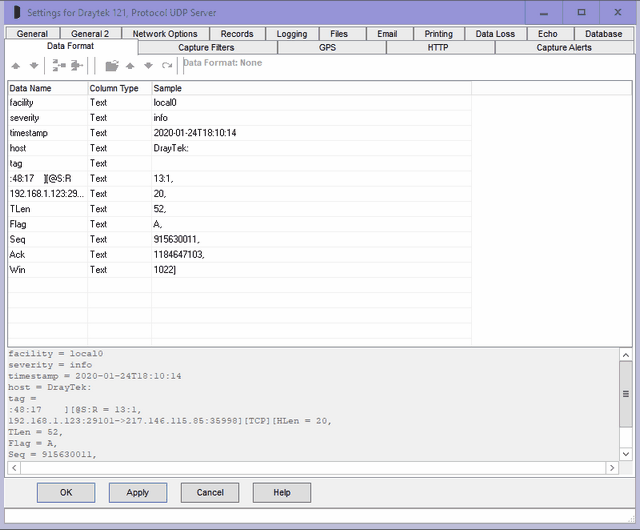
Specifying the data format 'variable named columns' is similar, except the data column name is specified instead of the sequence. The sample data is parsed to separate the data names from the data values. Note spaces are not allowed in the data names. Any named columns not found are treated as blank or null.
DB Column Name, Column Type, Column Length and Nullable
For adding to database, these columns are pre-filled from the table definition or stored procedure parameters and can not be changed. If the table or SP is changed, click the New Columns from Database button to refresh them, but beware Sequence will be cleared. The Column Type column shows the definition of that column, any attempt to write alphanumeric data to a numeric column will cause a SQL error. Currently, ComCap lets the ADO or the stored procedure raise errors for data type incompatibilities and captured data is not actually validated (except for blanks, see below). Column Type, Column Length and Nullable are ignored for reformatted data.
Data Name
Variable Named Columns are identified by their names, which may or may not be the same as the database Column Names. The Data Name column is editable, and is used to define the name for each database column. If a database column or parameter is to be left blank, leave Data Name blank. If the column data length is longer than the Column Length, it will be truncated. All data is trimmed to remove leading and trailing spaces.
Blank data often causes trouble. If a column contains all spaces, it is converted to a NULL for Date/Time Column Types or if the table allows nulls in the column. Because all stored procedure parameters are Nullable, numeric values are passed as 0 and text as blank.
For reformatting data, provided sample data is available, one row is created for each column found, with Data Name taken from the sample data and should not be edited otherwise the original columns will not be found. Unwanted output columns may be deleted or they may be re-ordered.
Sample Data
The panel below the grid shows the current Sample Data line displayed as one row per column, preceded by the Data Name. The Sample Log Up and Down buttons may be used to select different lines of Sample Data. The Sample Data line is automatically parsed and the identified columns displayed in the grid Sample column, according to the current Data Names. If a Data Name is changed, the Reparse button should be clicked to refresh the Sample column. The Sample columns show Invalid Column if the data can not be parsed. This is quite likely with Variable Named Data where only the columns actually used are presented.
Data Format: Json and XML
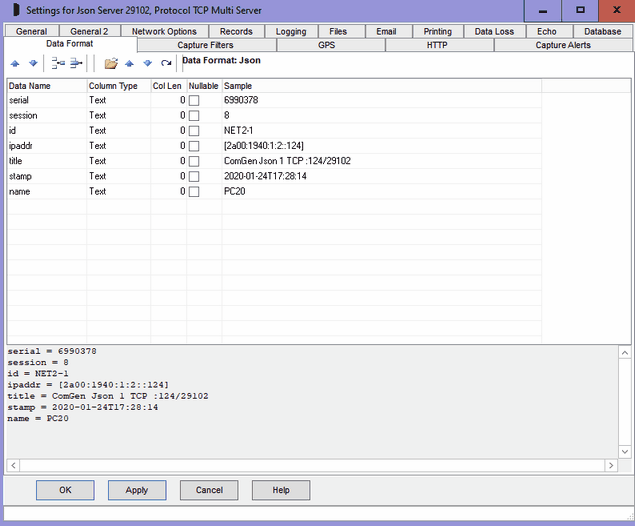
Specifying the data formats Json and XML is the same as 'variable named columns'. The sample data is parsed to separate the data names from the data values. Any named columns not found are treated as blank or null.
Note the data format for Json and XML only handles top level objects and fields from a single record, it can not parse arrays or multiple records, nor nested objects which will be remain as Json (also for XML) objects or arrays. Also, ComCap needs to process the entire block of Json or XML as a single record, so on Records, 'Line or Record End' should be set to Multiple Tags, with the tag for Json generally being '}/n' and for XML '</lasttag>', assuming that the Json record is followed by a newline, and the XML tag name is that of the opening tag. These record end settings mean any embedded new line ends within the record are ignored so it is captured as a single line.
Column Name, Column Type, Column Length and Nullable
For adding to database, these columns are pre-filled from the table definition or stored procedure parameters and can not be changed. If the table or SP is changed, click the New Columns from Database button to refresh them, but beware Sequence will be cleared. The Column Type column shows the definition of that column, any attempt to write alphanumeric data to a numeric column will cause a SQL error. Currently, ComCap lets the ADO or the stored procedure raise errors for data type incompatibilities and captured data is not actually validated (except for blanks, see below). Column Type, Column Length and Nullable are ignored for reformatted data.
For reformatting data, provided sample data is available, one row is created for each column found, with Column Name taken from the sample data and should not be edited otherwise the original columns will not be found. Unwanted output columns may be deleted or they may be re-ordered.
Data Name
Variable Named Columns are identified by their names, which may or may not be the same as the database Column Names. The Data Name column is editable, and is used to define the name for each database column. If a database column or parameter is to be left blank, leave Data Name blank. If the column data length is longer than the Column Length, it will be truncated. All data is trimmed to remove leading and trailing spaces.
Sample Data
The panel below the grid shows the current Sample Data line displayed as one row per column, preceded by the Data Name. The Sample Log Up and Down buttons may be used to select different lines of Sample Data. The Sample Data line is automatically parsed and the identified columns displayed in the grid Sample column, according to the current Data Names. If a Data Name is changed, the Reparse button should be clicked to refresh the Sample column. The Sample columns show Invalid Column if the data can not be parsed. This is quite likely with Variable Named Data where only the columns actually used are presented.