Capture Settings are set-up separately for each capture channel. Once these settings have been specified, OK or Apply should be clicked. This tab specifies Capture Log file names.
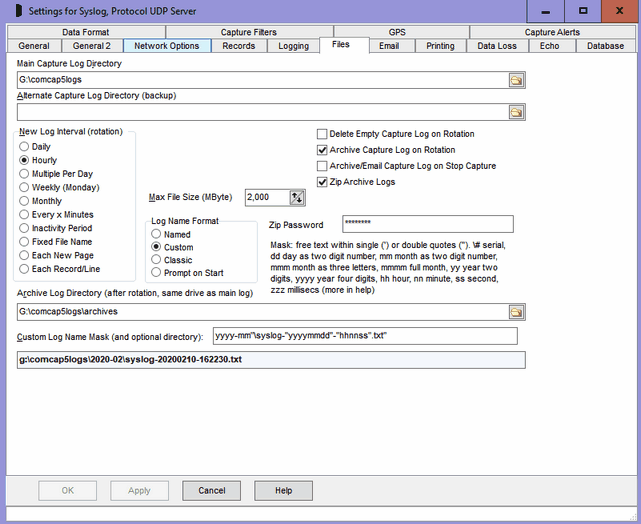
Capture Log Directories
Allows Main and Alternate Capture Log Directories to be specified, in which capture log files be created. The Alternate Directory may be left blank if backup logs on a second disk drive or network share are not required. Clicking the icon at the end of directory edit box displays a Browse for Folder dialog allowing a drive and directory to be selected. If a new directory should be created, just enter it and it will be done automatically. It is not possible to save Capture Settings unless a test file can be created and written to the Main Capture Log Directory, and to the Alternate if specified. If network shares are used, a LAN Logon may need to be set-up in Common Settings, LAN/Misc. UNC network paths may be used.
Note that ComCap will exceptionally save Capture Logs and Information Logs in the program directory, if the normal directories are unavailable or are not specified during start-up.
New Log Interval
Specifies how often a new Capture Log file should be opened. Note that each separate channel uses separate files (unless Common Logs are specified), and may have different settings.
Daily |
A new capture log is opened once a day, which is at the New Log Time, see below. If the log is opened at midnight, the file name need only contain a date mask otherwise it needs the time of day as well. |
Hourly |
A new capture log is opened each hour, on the hour. This could be used with a custom name mask of '"capture-"yyyymmdd-hh".txt"' so the file name contains hours only, and no minutes. |
Multiple Per Day |
Multiple new capture logs are opened each day, according to Logs Per Day, starting at the New Log Time, see below. |
Weekly (Monday) |
A new capture log is opened once a week, on Monday, starting at the New Log Time, see below. |
Monthly |
A new capture log is opened once a month, at midnight on the first day of the month. |
Every x Minutes |
A new capture log is opened after the time period specified in New Log Every (see below), perhaps every 30 minutes. Typically used for high traffic situations. The difference from Multiple Per Day is that a new log is opened each time capture starts, and then periodically. |
Inactivity Period |
A new capture log is opened each time the old log is closed due to the ‘Inactivity delay before closing capture log’ specified in Capture Logging expires. This setting is typically used for capturing batch information, such as printed reports. |
Fixed File Name |
Always used the same fixed file name for the capture log, beware the log may be get very large unless purged by another application. |
Each New Page |
A new capture log is opened at the end of each page, when a form feed control character is received. This setting is typically used for capturing batch information, such as printed reports. |
Each Record/Line |
A new capture log is opened for each record, which is usually one line, which will create lots of short log files. This is really intended for capturing multiple line data such as remote alarm reports where the record end is specified as a timeout or (end) or something, rather than high speed tabular type data. |
Note that the Log Interval has an effect on how much old data can be viewed interactively. When changing capture tabs to view data from other channels, only data from the current capture file is restored, if any. To look at older data, the specific capture log must be opened by file name. This also applies to Common Files logging, where data from more than one channel is written to the same common log file, so can not be restored to different tabs.
New Log Open Time
For the New Log Interval Daily, specifies at what time of day the new log is created, defaulting to 00:00:00 for midnight. If the time is set to anything other than midnight, the ‘Log Name Format’ must include provision for the time of day in the file name.
New Log Every
For New Log Interval: Every x Minutes, specifies how often a new log file should be opened, defaulting to every 60 minutes. Note that new log files are only created when new capture data arrives, so there will not be any empty files during quiet periods. Logs are always opened on the exact minute.
Logs Per Day
For New Log Interval Multiple Per Day, specifies how many new log file should be opened each day, starting at the New Log Time. Four logs per day with a new time of 00:00 would create new logs every six hours at 00:00, 06:00, 12:00 and 18:00; three logs starting at 06:00 would create new logs at 06:00, 14:00 and 22:00; seven logs per day from 00:00 would create new logs every 206 minutes, at 03:26, 06:52, 10:18, etc. The minimum Logs Per Day is two, maximum is 12, for lower or higher use the Hourly or Daily settings.
Max File Size (MBytes)
This option allows the maximum capture file size to be limited, with a new file being created once a specified size is reached, in megabytes. The default is 2,000 (which is 2 gigabytes). Some care is needed with log name format, specifically if it does not contain sufficient granularity to create a unique file name, so if more than than one file per day is needed, the name mask must include at least hours. If a new file name can not created, a default name with date and time in seconds will be created.
Delete Empty Capture Log on Rotation
Ticking this option avoids empty capture logs remaining on disk, after they are closed and a new log opened. Note this only applies to the main capture log, not the alternate.
Archive Capture Log on Rotation
Ticking this option causes a log file closed for rotation for a new file name to be moved to an archive directory on the same disk drive. Many ComCap users further process capture logs, sometimes with difficulty due to the files being continually updated, so this options means that scanning the archive directory and will only find completed capture logs, and not those still open in the main capture directory. To FTP an archived capture log, use our DUN Manager application which offers various Scheduled Tasks including FTP Upload which will automatically FTP any files it finds in a specified directory (use the new 'Archive Capture Log on Rotation' feature, see above) and then move them elsewhere so they are not sent again.
Archive Log Directory
Specifies the directory to which the capture log should be moved or archived when closed on rotation for a new log file. The archive directory must be on the same disk as the capture directory, since the capture log is renamed to the new directory, rather than being copied which is potentially much slower. If a Custom Log Name Format is used with a customised capture sub-directory using a date mask (see below), this sub-directory is added after the Archive Directory.
Archive/Email Capture Log on Stop Capture
Ticking this option causes the log to be archived even if the rotation time has not yet arrived when ComCap is stopped. If ComCap is restarted before the next rotation time, a new log with the previous name will be created, but when it is finally archived it will be renamed by the addition of -1, -2, etc, to the file name to avoid a conflict with previously archived log file names, if any.
Zip Archive Logs and Zip Password
Ticking this box (and 'Archive Capture Log on Rotation') causes the archive file to be zipped to save disk space. Optionally, a password may be specified with which to encrypt the zip to prevent unauthorised access. Currently this zipping process temporarily blocks ComCap5 displaying more data, but this should be for less than a second unless the file is very large. If this delay becomes a problem, rotate capture logs more often to make them smaller. If the delay becomes a serious problem, zipping will be done using a background thread so capture continues.
Log Name Format
Specifies whether the file name format used for log file is standard or is customised by the user.
Named |
This format uses the channel name, then the date and time, ie the mask is name-yyyymmdd-hhmmss.txt, so for Channel Name Cdrs com3, the log name format would be: d:\logs\cdrs com3-20061005-152014.txt |
Custom |
For a Custom log Name Mask of "phonelogs-"yyyy-mmm".txt", the log name format would be: d:\logs\phonelogs-2006-oct.txt |
Classic |
This is the format used by ComCap v3, for serial port channels it’s capture followed by the port number, then the date and time, ie the mask is captureX-yyyymmdd-hhmmss.txt, for network channels it’s network following by the Channel Id: d:\logs\capture3-20061005-152059.txt |
Prompt on Start |
Allows a specific file name to be specified each time capture is started. Setting this option automatically sets 'Fixed File Name', and can only be done if ComCap is not specified for Auto Start or to run as a Background Service, since ComCap would never actually start. The initial file name can be specified here, but ComCap always saves the last name specified in the Open File dialog that appears when capture starts.
This feature is intended for applications where data is being captured from a single device for a specific purpose, such as a laboratory test. The 'Add Comment to Log' right menu option might also be useful to add information to the capture log. |
Custom Log Name Mask
The Custom Name Format allows a Custom Log Name Mask may be created. This is done using mask characters that specify how the log date and optional time are formatted in the file name.
The Custom Log Name Mask may optionally include a sub-directory typically using a partial date, so a new sub-directory is created monthly or daily, to avoid large numbers of files in the same directory, in the format: subdir\filename.txt. Note this sub-directory is also used if archiving log files on rotation, so both capture directory and archive directory may have only a week or month's worth of logs.
Be very careful creating the file mask, it must include sufficient date and time masks to ensure a unique file name is created to match how often new logs are opened, so a daily log must have the day, an hourly log the time, and new record/line a serial number, seconds or milliseconds depending on how often new data will arrive.
\#
|
Add the current serial number to the mask, which may be used instead of date and time for unique sequential file names. |
Date and time elements are creating using characters strings from the following table:
c |
Date and time using the Windows default settings. |
d |
Day as a number without a leading zero (1-31). |
dd |
Day as a number with a leading zero (01-31). |
ddd |
Day as an abbreviation (Sun-Sat). |
dddd |
Day as a full name (Sunday-Saturday). |
ddddd |
Date using the short Windows default setting. |
dddddd |
Date using the long Windows default setting. |
m |
Month as a number without a leading zero (1-12). |
mm |
Month as a number with a leading zero (01-12). |
mmm |
Month as an abbreviation (Jan-Dec). |
mmmm |
Month as a full name (January-December). |
yy |
Year as a two-digit number (00-99). |
yyyy |
Year as a four-digit number (0000-9999). |
h |
Hour without a leading zero (0-23). |
hh |
Hour with a leading zero (00-23). |
n |
Minute without a leading zero (0-59). |
nn |
Minute with a leading zero (00-59). |
s |
Second without a leading zero (0-59). |
ss |
Second with a leading zero (00-59). |
zzz |
Milliseconds with leading zeroes (000 to 999) |
t |
Time using the short Windows default setting. |
tt |
Time using the long Windows default setting |
am/pm |
The am/pm specifier can use lower, upper, or mixed case. |
a/p |
The a/p specifier can use lower, upper, or mixed case. |
/ |
Date separator character. |
: |
Time separator character. |
\ |
Path separator character, not at front or end. |
Any text to appear in the file name should be within single (') or double quotes ("). Note that a directory path may be included within the mask, so new directories are created each day or month. The mask must not include the leading back slash. The following table shows several mask examples.
Mask – quotes are needed |
Resulting File Name |
"capture-"yyyymmdd".txt" |
capture-20060828.txt |
"capture2-"yyyymmdd"-"hhnnss".txt" |
capture2-20060828-145404.txt |
yyyy”-“mmm”-“dd".log" |
2006-Aug-28.log |
ddd” “d” “mmmm”.txt” |
Wednesday 28 August.txt |
“cdr-“dd/mm/yy".log" |
cdr-28/08/06.log |
"month-"mm"\info1-"yyyymmdd".txt" |
month-09\info1-20060929.txt |
"info1-"yyyymm"\"dd".txt" |
info1-200609\29.txt |
"info1-"yyyymm"\"yyymmdd".txt" |
info1-200609\20060929.txt |
"info1-\#.txt" |
info1-123456.txt (serial number) |
'yyyy-mm"\capture-"yyyymmdd".txt"' |
\2006-09\capture-20060828.txt |
As the Custom Log Name Mask is typed, the resulting file name appears dynamically. When capturing data from multiple channels, note the file names must be unique if the capture logs are saved in the same directory. It is not possible to add the channel number or name using mask characters so it must be added as text, ie 1 or 2, etc.