Capture Settings are set-up separately for each capture channel. Once these settings have been specified, OK or Apply should be clicked. This tab specifies how captured data should be logged and manipulated.
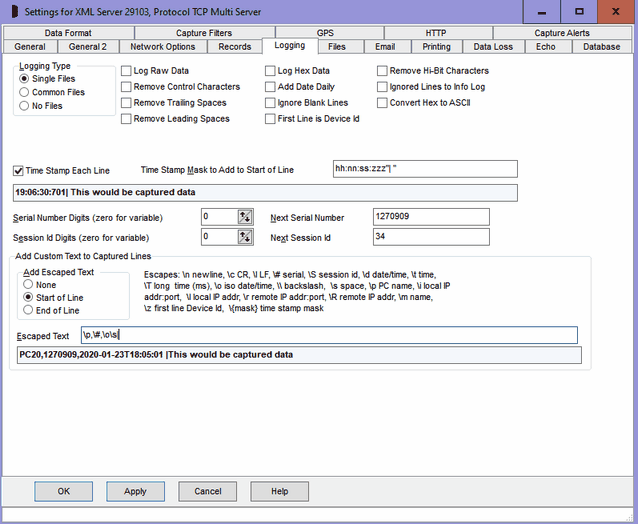
Logging Type
The Logging Type menu specifies how capture data is written to files.
Single Files |
Each channel captures to it’s own single file |
Common Files |
Two or more capture channels save data into the same common file as specified in Common Settings, Log Files. Note that old data for individual channels can not be viewed when changing tabs, since it has not been written to separate files. |
No Files |
Captured data is not written to any file, usually where it is just being echoed or saved to a database. This option is really not recommended. |
Log Raw Data
ComCap normally processes any received data to remove or translate non-printing characters that may cause problems in capture log files. Ticking this option causes data to be captured exactly as received. The data display on the screen will still be processed to remove non-printing characters.
Remove Control Characters
ComCap normally translates superfluous control characters captured into spaces; this includes null, tabs, form feeds, etc. If this setting is ticked, such control characters are removed completely. Which option is preferred will depend upon the data being received. Some data may include tabs to separate columns of information, so conversion to a space is better; other data may include padding nulls which cause formatting problems if converted to spaces so are best removed. If control characters are needed in the capture log, use the Log Raw Data option, see above. This is not allowed if Log Raw Data is ticked.
Remove Trailing Spaces
If ticked, specifies that trailing spaces or control characters at the end of each line should be removed. This is not allowed if Log Raw Data is ticked.
Remove Leading Spaces
If ticked, specifies that leading spaces or control characters at the beginning of each line should be removed. This is not allowed if Log Raw Data is ticked.
Log Hex Data
If ticked, causes all captured data to be converted into hexadecimal (doubling the size). This is primarily intended for capturing binary data, but may be used a debugging tool to find the exact format of data being captured, for instance the type of line endings. Normal line ending rules are applied when capturing in hex, so lines may be broken on linefeed, etc (also saved in hex).
Add Date Daily
If ticked, causes the date and time to be added before the first data is captured each day, or when logging starts.
Ignore Blank Lines
If ticked, causes lines without any printable characters to be ignored. This will reduce the size of logs that contain far too many blank lines. This option should generally be used with 'Remove Control Characters'.
First Line is Device Id
If ticked, causes the first captured line to be saved and not logged. The first line may then be added to subsequent captured lines using 'Add Escaped Text' with the \z command. A number of remote TCP devices may be configured to identify themselves when a TCP session connects, by sending a device id as the first line of data. For instance, Tysso eCov serial to TCP/IP converter sends a five digit configurable number as the first line, while some GSM/3G modems send a device type and IMEI number. So effectively the Device Id is added to each captured line to identify it, specifically with TCP Server where lots of different remote devices may be calling home. For instance, the raw output from Tysso eCov 100 when stating a session is:
02345A
Text test line from ComGen Id 2 on MAGSERVER at 19:15:37 serial 009688
Text test line from ComGen Id 2 on MAGSERVER at 19:15:38 serial 009689
Text test line from ComGen Id 2 on MAGSERVER at 19:15:39 serial 009690
so this option suppresses the device Id on the first line, and adds it the each following line instead.
02345A Text test line from ComGen Id 2 on MAGSERVER at 19:15:37 serial 009688
02345A Text test line from ComGen Id 2 on MAGSERVER at 19:15:38 serial 009689
02345A Text test line from ComGen Id 2 on MAGSERVER at 19:15:39 serial 009690
Remove Hi-Bit Characters
If ticked, filters out any characters with the hi-bit set, above ASCII 127. This complements 'Remove Control Characters' and may help clean up corrupted modem data.
Ignored Lines to Info Log
If ticked, causes line ignored by 'Validate Line Length' or 'Ignore Lines with Phrases' to be logged to the information log instead. Note this is really for debugging, the info log might get large if a lot of lines are ignored. Lines ignored for 'too many' are not logged since this defeats the purpose. This option also logs printer control sequences removed.
Convert Hex to ASCII
If ticked, specifies that captured data is being sent as hexadecimal text (only 0 to 9 and A to F) and should be converted into ASCII. No checks are made that the text really is hex, ComCap simply removes all spaces and tries to convert whatever arrives to ASCII. This processing takes place before other options so the text can be logged as Raw Data, filtered or any other features.
Time Stamp Each Line, Time Stamp Mask
If ticked, adds a time stamp and optional text at the start of each logged line. This may be useful when logging periodic data such as alarms that don't include the time within the captured data, or where the time may be inaccurate. The Time Stamp Mask should be specified, this defaults to hh:nn:ss:zzz"|" which would cause something like 12:41:05:107| to precede each captured line. The :zzz can be removed if millisecond accuracy is not needed. This option is not available if logging 'Raw Data'. The mask characters and format are identical to those used for Custom Log Names, see Files. Note that Escaped Text at the start of the line is added after Time Stamp Each Line, if both are used together.
Next Serial Number, Serial Number Digits
ComCap allocates a Serial Number for each line that is captured (unique to each channel). Next Serial Number specifies the next serial number to be used, and may be changed if necessary. The serial number increments for each captured line will wrap back to one when it reaches the specified Serial Number Digits length, or zero if it should increment indefinitely. The Serial Number may be added to each captured line using the Add Escaped Text option below, or used in a database column. This is primarily for the benefit of other applications that process the data in real time, so they don't process duplicate data. It may also be used to confirm that lines have not been lost from the capture logs. Note it will not help if data is lost before being written to the logs.
Next Session Id, Session Id Digits
Capturing from multiple remote clients to a single TCP Multi Server channel raises issues of how to identify data from each new client, and which remote clients are connected. ComCap allocates a sequential 'Session Id' which is incremented for each new remote capture session, when ComCap accepts a new incoming TCP connection or makes an outgoing TCP connection (unique to each channel). Next Session Id specifies the next number to be used, and may be changed if necessary. The Session Id will wrap back to one when it reaches the specified Session Id Digits length, or zero if it should increment indefinitely. The Session Id may be added to each captured line using the Add Escaped Text option below, or used in a database column.
Add Custom Text to Captured Lines
To assist in identifying and optionally further processing captured text, extra text may be added to the start or end of each captured line. The extra text may include escape sequences to added
\# |
Serial Number, unique to channel incremented for each line, with leading zeros according to Serial Number Digits above. |
\S |
Session Id for TCP Multi Server, with leading zeros according to Session Id Digits above. |
\d |
Date and time, ie 21-Jun-2006 20:10:12. Note this is a fixed date format, if more flexible formatting is needed use the Time Stamp Each Line option above. |
\t |
Time, ie 20:10:12 |
\o |
ISO date and time, ie 2006-06-21T20:12:11, recommended for database capture |
\T |
Long time with milliseconds to three decimal places, ie 10:22:56:586 (but Windows is not millisecond accurate) |
\s |
Space, used as a separator at the start or end of the escaped text, not necessary within the text |
\p |
PC Name (NETBIOS),ie MYCOMPUTER |
\i |
Local IP address and port, ie 192.168.44.55:514 |
\I |
Local IP address, ie 192.168.44.55 |
\r |
Remote IP address and port, ie 192.168.44.55:514 |
\R |
Remote IP address, ie 192.168.44.55 |
\m |
Capture Name, note spaces may cause problems |
\n |
New Line (CRLF), not generally recommended |
\f |
Form Feed (FF)), not generally recommended |
\c |
Carriage Return (CR)), not generally recommended |
\l |
Line Feed (LF), not generally recommended) |
\\ |
Backslash (\) |
\e |
Escape (ESC)), not generally recommended |
\xnn |
Any hex code where nn is 01 to FF |
\z |
Device Id, saved from first line captured |
\{} |
Adds freely format dates and times, similarly to 'Time Stamp Each Line' using mask characters placed between the two curly brackets. The mask characters and format are identical to those used for Custom Log Names, see Files and the example below. |
For Serial Number Digits set to eight, examples of adding escaped text are as follows:
Escaped Text |
Resulting Text |
\# \o\s |
0123567 2006-06-21T20:12:11 |
|\# |
|0124567 |
,"\#" |
,"0123567" |
\p,\r, |
MYCOMPUTER, 192.168.44.55:514, |
\{hh:nn:ss.zzz} |
12:59:06.720 |
\{yyyymmdd"-"hhnnss} |
20121101-124906 |
Note that Escaped Text at the start of the line is added after Time Stamp Each Line, if both are used together. Escaped Text is not allowed if Log Raw Data is ticked.