The Common Settings apply to all capture channels. Once these settings have been specified, OK or Apply should be clicked. This tab defines how alerts and logs are sent by email.
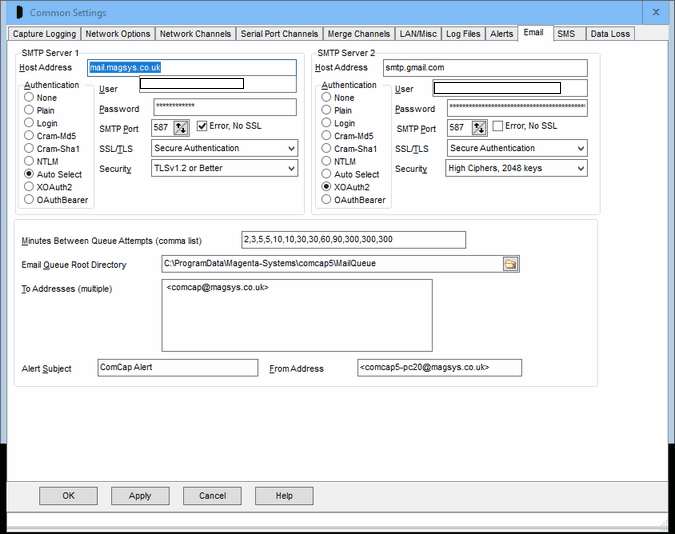
Email Overview
These settings define how Alerts and logs will be sent by email. Note email will require a network connection to either a local LAN with an email SMTP server, or to the internet. ComCap may sent two or more alerts in each email. Sending emails is free of charge.
Email Queue
A mail queue is used by ComCap, so email alerts will not be lost if there are network problems or if ComCap stops for any reason. If there are problems sending email immediately, it will be retried potentially over 24 hours or more. Note the email queue is only running while ComCap is running, but if ComCap is stopped it will make one attempt to send any pending emails (such as logs emailed on close) within 30 seconds (but not for longer since Windows might be closing ComCap to reboot). The current state of any emails sitting in the mail queue may be checked in Show Mail Queue window from where they may be deleted if necessary if not sent.
SMTP Servers, Host Address, Authentication, User/Password, and SMTP Port
One or two SMTP server details need to be specified, if the first is unavailable, the second will be attempted. For each SMTP server, the host names or IP addresses need to be specified, to which emails will be relayed. The Authentication should be Auto Select for the best choice available on the server with the User name and Password specified, or a particular authentication method may be chosen: Plain, Login, Cram-Md5, Cram-Sha1 or NTLM (the last three encrypt the password). If the SMTP Server is running on an SMTP Port other than the standard 25, this may be specified.
OAuth2 authentication may be optionally used by Google Gmail and various Microsoft mail platforms like Outlook, Office365 and Live Mail. OAuth2 authentication does not use a locally saved account password which can potentially be compromised, but instead requires account login through a web browser window where account and password are specified, and internally ComCap saves a 'token' instead of the password which allow account access, usually for weeks or months. If account access has expired or the password changed, the browser window appears again. Because ComCap runs unattended, the email account login takes place when saving Common Settings. For Google Gmail, use SMTP server smtp.gmail.com, set Authentication to XOAuth2 and after clicking OK a browser window will ask for you account, the login must be the same as the User Name specified for the account. If your Google account has high security specified, only OAuth2 access is allowed. For Microsoft, OAuth2 does not seem to be required currently, but this could change in the future. Microsoft has a lot of different account types and mail servers, ComCap has been tested using personal rather than corporate accounts, using SMTP servers smtp-mail.outlook.com and smtp.office365.com, with Authentication set for XOAuth2.
Secure Email, SSL/TLS
Secure email using SSL/TLS may be specified, which is required by services such as Gogglemail and Windows Live Hotmail. 'SSL/TLS Connection' should be used with SMTP Port 465 and forces an implicit TLS connection to this port. 'SSL/TLS Authentication' normally uses port 587 but older servers may use port 25, but will check if the server returns a STARTTLS response to indicate it supports SSL/TLS authentication at which point a secure connection is established instead. Note that the SMTP server SSL certificate is not currently checked.
Minutes Between Queue Attempts
This option specified the period in minutes between attempts to send email from the queue, with one attempt for each of the two SMTP Servers, if both specified. For instance, 2,3,5,5,10 would cause retry attempts after 2, 5, 10, 15 and 25 minutes from when the email was queued, Note that some email servers support grey listing and reject the first email attempt from a new sender but allow a retry 10 or 15 minutes later, something that is very effective in blocking spam emails (since they don't usually retry).
Email Queue Root Directory
ComCap uses temporary files to hold queued email, the root directory for which needs to be specified here. A control sub-directory contains some small files listed queue details and retries, and the badmail sub-directory contains mail that could not be sent after all retries were exhausted. To stop emails being sent, simply delete any files with the EML extension.
Default Subject and From Address
The Default Subject is used for alert emails sent by ComCap, and might be ComCap Alert. Likewise, the From Address should be specified with a descriptive name in double quotes, followed by the actual email address in angle quotes, ie "ComCap Alert" <comcap@magsys.co.uk>.
To Addresses
One or more addresses may be specified to which the alert will be sent, each address should be on a separate line, with a descriptive name in double quotes, followed by the actual email address in angle quotes, ie "Angus Robertson" <angus@magsys.co.uk>.
Authentication, User and Password
If the SMTP server needs authentication, this may be selected from Plain, Login or CramMd5, Cram-Sha1, NTLM or Auto, and specified.
Test Alert
In the main capture window, click File menu, clicking Test Alert causes an immediate test alert to be sent, according to the various settings above and on the Email and SMS tabs.