The Common Settings apply to all capture channels. Once these settings have been specified, OK or Apply should be clicked. This tab defines Local Area Network Logon and Drive Mapping, Windows Freeze Recovery, Network Options and displays ComCap license key details.
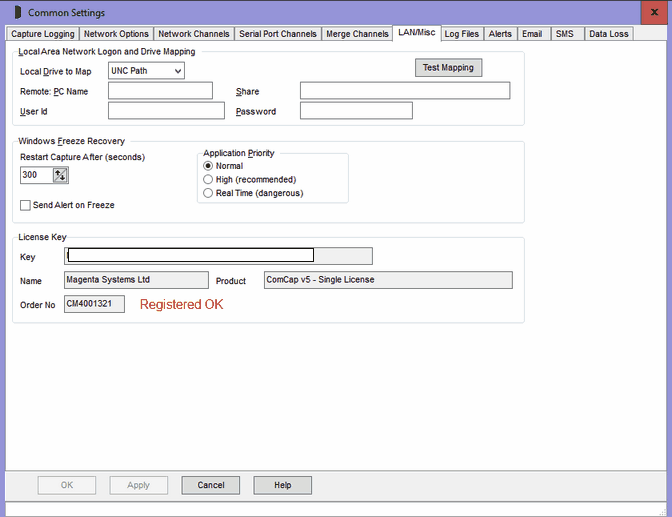
Local Area Network Logon and Drive Mapping
These options are primarily used when the ComCap Background Service needs to save files on shared network drives. Shared drives mapped for the current user are not available for the service, and login credential may not be available for UNC shares.
Note these LAN settings can not be changed if ComCap capture has started, they will be greyed. First stop capture, then make the changes.
Local Drive to Map may be set to UNC Path or a specific drive letter that should have a network share mapped to a Remote PC Name and Share, with a specific User Id and Password. If a specific drive is mapped, it is done as soon as ComCap starts, and unmapped when it closes. It must not duplicate an existing mapped drive letter or share. If UNC Path is specified, then log file name must be full UNC paths without drive letters, ie \\pc\share\file.txt.
The Test Mapping button will test the mapping details, it should connect and then disconnect to the shared drive, with any errors appearing in the Information Log.
Windows Freezing
ComCap provides an automatic workaround for a serious potential problem if Windows temporarily freezes due to the misbehaviour of other applications or hardware. Freezing is normally seen by the mouse being non-responsive and the system tray clock stopping. If a Windows application hogs all the CPU, it may stop Windows and ComCap correctly capturing data.
If ComCap seemingly freezes for more five seconds, a warning message is logged an Alert optionally generated. It is recommended the cause of such freezing is determined and the other application stopped. The Application Priority on the Capture Logging tab may be set to High or Real Time to reduce the likelihood of other applications blocking ComCap. If a freeze exceeds a specified number of seconds, capture may be optionally restarted, but data may still have been lost during the freeze.
Sometimes the freezing can be much longer, in particular if there are disk drive problems or if an EIDE tape drive is being used. A Hewlett-Packard 20 GB Trevan drive used under Windows XP SP1 causes a test PC to freeze for over two minutes while the tape is being positioned at the start and end of backup, and this is devastating for data capture. The long freeze not only causes data to be lost, but confuses various internal timers so no more data is captured.
Application Priority
This option specifies the priority at which the ComCap application will run, in comparison with other Windows applications. Windows is multi-tasking with often dozens of applications are running at the same time (including many background services). Each application gets a few milliseconds CPU time, each second, to allow it to keep running. If one application starts using excessive CPU, others slow down and sometimes appear to hang with the worst case being when the mouse becomes frozen. Windows has four main priority levels, Low, Normal, High and Real Time, which most applications run with Normal priority. The Application Priority menu defaults ComCap to High priority, making loss of data due to other application using too much CPU less likely. ComCap can be set to run as Real Time which means it has higher priority than most Windows functions such as mouse movement, flushing files, etc, but may mean the PC locks up completely if ComCap were to severely misbehave (which is, we hope, unlikely).
License Key
Several fields display the ComCap license key details, if found, and may show an expiry date for a limited duration demonstration key.