ComCap Getting Started 
|
ComCap Getting Started |
Top Previous Next |
|
When the ComCap Tray application is started, it immediately minimises itself to the system tray, usually in the bottom right of the screen.
If ComCap is currently capturing data, the system tray icon will show a green blob
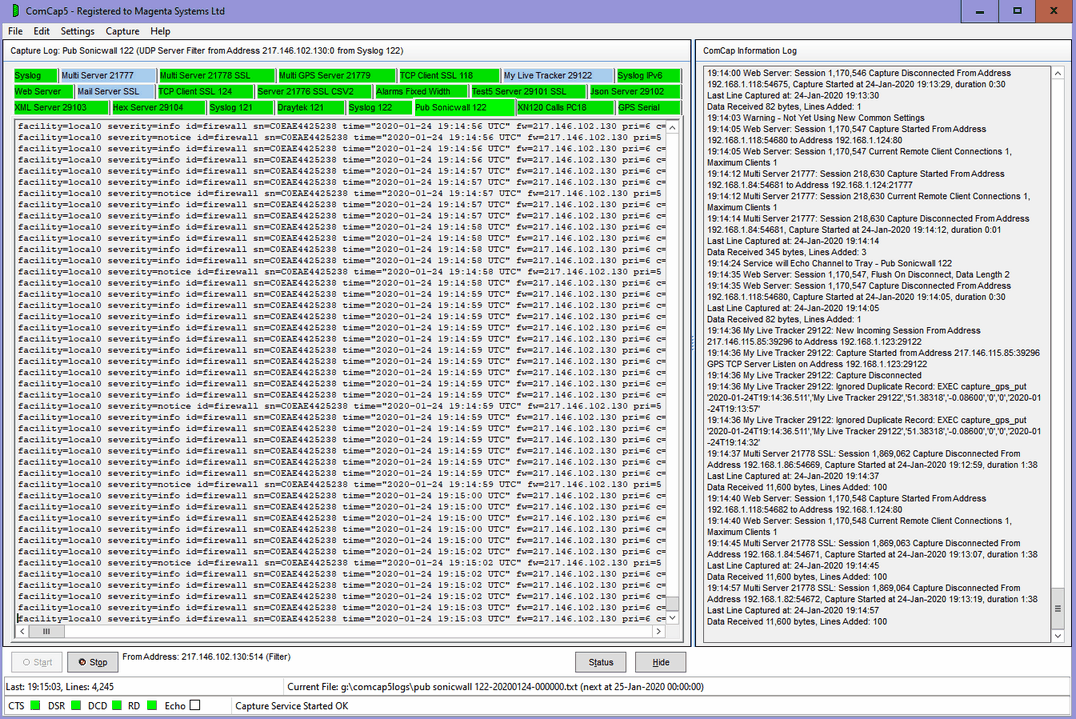
Left or right clicking on the green ComCap icon will open the ComCap Main Capture Window, with a Capture Log window on the left and an Information Log window on the right.
The example here has numerous test channels set-up and running, green tabs means OK, red would be not running. A new install will not have any tab.
Initial Set-Up Before any capture may be done, various Common Settings must be specified, selected from the Settings.
If ComCap is to be run as a Background Service so it starts automatically when the PC boots before anyone logins in, it must be setup initially by a user with administrator privileges. When starting ComCap right click on the icon and click on 'Run as Administrator'. Alternatively, right click on the icon, click on Properties, then Compatibility, then tick 'Run this program as an administrator' so that ComCap always has admin privileges.
In Common Settings, Capture Logging the operating mode should be specified, whether capture is using the Tray or Background Service applications, whether they should auto start when Windows starts and whether the Background Service is to monitored by the Tray application.
In Common Settings, Network Channels, any network capture TCP Client, TCP Server or UDP Server channels should be created.
In Common Settings, Serial Port Channels, and serial RS232 port channels should be created.
In Common Settings, Log Files, the Default Log directory must be specified.
When saving Settings, it is possible an 'access denied' error may appear due to file security modify permissions not allowing the current user to update settings. This should not happen if the program is being run with administrator privileges. If the file access denied error occurs, use Windows Explorer to give modify permissions to the current to all files in the ComCap4 ProgramData directory shown in the info log window.
Once these Common Settings have been specified, the ComCap Main Capture Window will be updated to reflect the Network and Serial Port channels to be captured, and the Settings menu will allow additional Capture Settings to be specified for each capture channel, such as the format of data being captured, whether it should be saved to a database, printed or echoed to other computers, and the frequency of the Capture Log files saved.
Common and Capture Settings may be changed while ComCap is capturing live data, but a prompt will be provided after they are saved allowing capture to be restarted to make the new settings effective.
Finally, clicking the Start button in the main ComCap Main Capture Window will start capture.
|