Capture Settings are set-up separately for each capture channel. Once these settings have been specified, OK or Apply should be clicked. This tab specifies General capture information.
Note there are numerous optional capture settings here, all important to some end users, but also potentially confusing to those that don't need them. So ComCap tries the 'grey' or disable options that are not relevant according to earlier selections. So the GPS and SSL/TLS settings are not available unless GPS or SSL/TLS were selected in Common Settings for the channel, likewise this first tab has several high level functions like Save to Database and Filters and Alerts that cause other tab settings to become available.
Important: if changed while running, these settings only take effect after the channel is restarted.
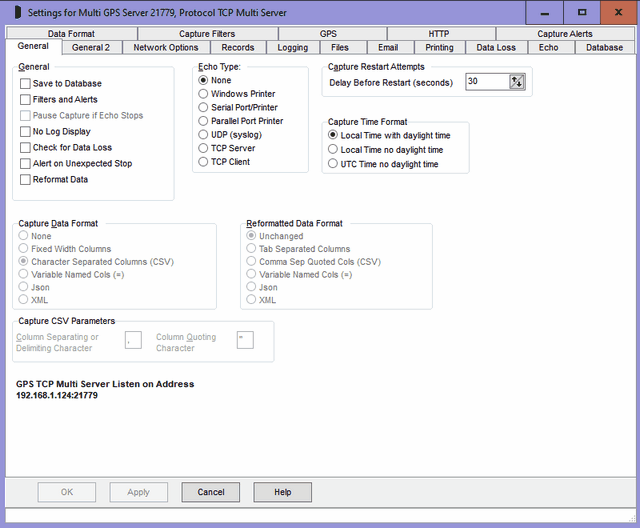
Save to Database
If ticked, specifies that captured data should be written to a database. The Database and Data Format tabs will be enabled, allowing the database, table and columns to be specified. 'Capture Data Format' on this tab must also be specified.
Filters and Alerts
If ticked, specifies that captured data may be filtered by ignoring certain captured text, and trigger alerts from other captured text. The Capture Filters and Capture Alerts tabs will be enabled allowing these settings to be specified.
Pause Capture if Echo Stops
Not yet supported, but Pause Capture if Echo Stops will do as it suggests.
No Log Display
If ticked, specifies that captured data should not be displayed in the main windows as it arrives. This reduces the overhead on the PC, and might be useful for very slow PCs.
Check for Data Loss
If ticked, data loss checking becomes effective for this channel, triggering actions and alerts if data is not captured for a specified period. By default, the data loss settings are taken from Common Settings, Data Loss but they may be overridden by settings on the Data Loss tab if different values are needed for different capture channels.
Alert on Unexpected Stop
If ticked, triggers an alert if the channel is stopped due to a network connection dropping.
Reformat Data
If ticked, allows ComCap to save captured data in a different format, for instance fixed width lines of data, Json or XML may be saved as comma separated quoted columns for easier processing. Note this requires 'Capture Data Format' and 'Reformatted Data Format' on this tab to be specified, also the Data Format tab for the columns.
GPS Data Processing
If ticked, specifies that captured data should be processed according to more settings on the GPS tab.
Echo Type
Echo Type specified if captured data should be echoed or proxied to another computer or printer, in one of the following ways:
Windows Printer |
Captured data will be echoed to any installed Windows local or network printer. A new tab will appear where more Printing settings can be made. |
Serial Port/Printer |
Captured data will be echoed to a serial port, which may be cabled to a printer or another computer. A new tab will appear where more Printing settings can be made. |
Parallel Port Printer |
Captured data will be echoed to the LPT1 parallel port, which may be cabled to a printer. A new tab will appear where more Printing settings can be made. |
UDP (Syslog) |
Captured data will be echoed to a remote computer using the UDP network IP protocol, optionally with Syslog headers. A new tab will appear where more Network settings can be made. |
TCP Server |
Captured data will be echoed to a maximum of five remote computers using the TCP Server IP protocol. A new tab will appear where more Network settings can be made. |
TCP Client |
Captured data will be echoed to a remote computer using the TCP Client IP protocol. A new tab will appear where more Network settings can be made. This option may be used for 'IP Printing' using port 9100. |
The serial and parallel port printer options may be preferred over using a normal Windows printer because the Windows printer drivers often prevent data being printed while it’s still being captured. Driving the printers directly avoids any Windows queues or buffering, giving immediate print on impact printers, or full pages when 66 to 72 lines have arrived at a page printer (like a laser). The downside of direct printer access is that codes may need to be set to the printer to set margins, paper length, font size, etc.
Capture Restart Attempts
If capture fails to start, Capture Restart Attempts are specified as seconds before another attempt is made to start capture. This duration is also used for restarts caused by database problems.
Capture Time Format
Specifies how time is handled for each channel, specifically for date and time stamps and log rotation based on time. This may be useful if capturing data from data in other countries or simply to avoid the issues of an extra or missing hour twice a year during daylight saving time changes each spring and autumn.
Local Time with daylight time |
PC local time according to time zone, but with daylight or summer saving time changes (default). |
Local Time no daylight time |
PC local time according to time zone all year. |
UTC Time no daylight time |
UTC (Coordinated Universal Time) or GMT time all year. |
These settings do not apply to the Information Log, which remains system format, usually local time with daylight time changes.
Capture Data Format
This option is used to define the Data Format for captured data, where separate columns need to be identified to be saved to database columns or for reformatting.
Fixed Width Columns |
Fixed width columns is the most common data capture format where each line is the same length with columns separated by a variable number of spaces so each has a fixed starting position and length. Sometimes trailing space at the line end are skipped so the lines are variable length. |
Character Separated Columns (CSV) |
Character Separated Columns (sometimes called Character or Comma Separated Variables) data is where variable length columns have a separator character usually a comma. To allow the columns to contain the separating character, they may optionally, or always, have double quotes, ie "ComGen Test","192.168.1.109","PC09" See Capture CSV Parameters below. |
Variable Named Columns (=) |
Variable named columns data is where space separated columns are named, so the column name is followed by the data, with double quotes being used if the data contains a space, ie msg="Connection Opened" n=6258475 src=192.168.1.109:3008:LAN dst=216.22.212.19:80:WAN proto=tcp/http. This format is used by the Sonicwall firewall appliance for it’s Syslog. |
Json |
JavaScript Object Notation is an open-standard file format or data interchange format that uses human-readable text to transmit data objects consisting of attribute–value pairs and array data types. ComCap takes the attribute as column name and value as the data. Arrays are ignored at present. Only top level Json is processed. |
XML |
Extensible Markup Language is a markup language that defines a set of rules for encoding documents in a format that is both human-readable and machine-readable. Internally, ComCap converts XML into Json, which is very similar but more compact. |
The selection of Data Format here defines the appearance of the grid on the Data Format tab.
Capture CSV Parameters
These options allow customising Character Separated Columns, to specify the 'Column Quoting Character' and 'Column Separating or Delimiting Character'. Generally, the separator is a comma (,) and the optional quoting character a double quote (") which should appear after the separator if the column contains the separating character. If the quoting character appears in the column it needs to be escaped by doubling, ie "". But if the quoting character regularly appears in a column, then it should be changed to something else that does not appear.
Reformatted Data Format
This option is used to define how captured data will be reformatted for display and saving. The Capture Data Format must also be set-up to break the data down into columns, which are then saved in the new format.
Unchanged |
Captured lines are saved unchanged. |
Tab Separated Columns |
Data is saved with columns separated by TAB characters. |
Character Separated Columns (CSV) |
Data is saved in Character Separated Columns format, with double quoted delimiters and comma separators. Capture CSV Parameters are ignored. |
Variable Named Columns (=) |
Data is saved as space separated columns with the column name, equals sign, followed by the data, with double quotes being used if the data contains a space, ie colname="some data". The Data Format must be specified with Column Names, which should not have spaces. |
Json |
Data is saved as JavaScript Object Notation with column name and data writen as as attribute and value. The Data Format must be specified with Column Names. |
XML |
Data is saved as Extensible Markup Language, similarly to Json. |
Beware of editing the Data Format using the Reformatted Data Format option, because the sample data will be the reformatted data not the original captured data. So if you need to change the Data Format, untick Reformat Data, save settings, capture some new data in the original format, then come back to edit the Data Format, before ticking Reformat Data again.
Reformat Examples
Below are examples of the alarm data designed for fixed width printing being captured and converted into several more useful data formats, sorry not the same line each time: The Data Format used can be seen at Data Format.
Original captured Fixed Width Columns data line:
21 Jul 2019 03:26:40 UNACK INFO MESSAGE SEQ1_INFO 5 ESSQ53.SURV53.SEQ1_INFO ESSQ53 \AES701:0.0.0.0Aseries 0.00 Alm1 Steam off - high 1st effect temperature
Reformat as CSV:
"21 Jul 2019","03:38:50","UNACK","INFO MESSAGE","SEQ1_INFO","5","ESSQ55.UNAC55.SEQ1_INFO","ESSQ55","\AES701:0.0.0.0Aseries","0.00","ACKNOWLEDGE ALARMS BY OPERATOR"
Reformat as Variable Named Columns:
Date="21 Jul 2019" Time="03:47:36" Method="UNACK" Type="INFO MESSAGE" State="SEQ1_INFO" Id="5" Message="ESSQ87.SURV87.SEQ1_INFO" Code="ESSQ87" Mess 2="\AES701:0.0.0.0Aseries" Id 2="0.00" Mess 3="Alm1 Flume PH High 9.5 inform TEAM LEADER"
Reformat as Json:
{"Date":"21 Jul 2019","Time":"03:52:45","Method":"UNACK","Type":"DIGITAL","State":"STATE","Id":"1","Message":"ESIO12.DFAF99.STATE.1","Code":"ESSQ12","Mess 2":"\\AES701:0.0.0.0Aseries","Id 2":"0","Mess 3":"DEFAULT THRESHOLD 1"}
Reformat as XML:
<?xml version="1.0" encoding="UTF-8"><comcap><Date>21 Jul 2019</Date><Time>03:55:58</Time><Method>UNACK</Method><Type>DIGITAL</Type> <State>STATE</State><Id>1</Id><Message>ESAN52.DFCTTD72.STATE.2</Message><Code>ESSQ52</Code><Mess 2>\AES701:0.0.0.0Aseries</Mess 2>
<Id 2>0</Id 2><Mess 3>ALM THRESHOLD2 XX%</Mess 3></comcap>