The Common Settings apply to all capture channels. Once these settings have been specified, OK or Apply should be clicked. This tab defines up to 999 Serial Port capture channels (hardware permitting) that are specified using a grid.
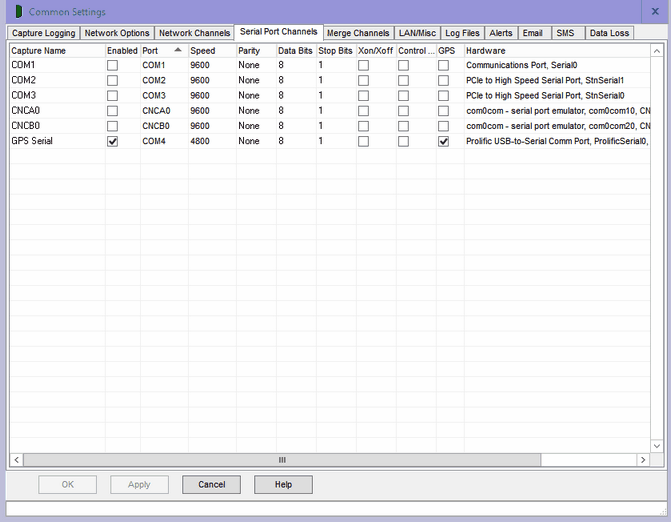
Serial Ports Overview
This grid allows different settings to be specified for each different serial RS232 communications port, see Serial Port Tutorial for more information. It's important to understand the grid shows all ports installed on the PC including those currently removed and unusable, which are typically USB serial ports that are unplugged. So capture can be set-up and started for ports that are currently removed, and will start immediately the USB device is plugged into and becomes available to Windows. Likewise capture will be paused if a serial port disappears, and restart if it re-appears. The word REMOVED appears in the Hardware column for ports currently not-installed.
To edit the grid, click on the required box and an edit control of some sort will appear, perhaps a drop down box arrow, an edit field or numeric up/down arrows. Once the edit is complete, click on another box to ensure the edit is saved, losing focus from the grid causes the last edit to be cancelled.
Merge Channels
When capturing data from multiple sources, one capture channel is needed for each separate source. To ease administration and set-up, one or more Merge Channels may be set-up combining or consolidating captured data from multiple channels, allowing all data to be displayed in a single window, written to a single log file, and added to a database using a single connection instead of one for each channel. One record at a time is merged, which may be one or more lines depending on the capture channel 'Line or Record End' setting (there is no record setting for merge channels). Merge Capture Name are a subset of the network or serial Capture Name, so in the screen capture above the channels named 'COM1', 'COM2', etc, are merged to a new channel named 'COM'.
Capture Name
The Capture Name uniquely identifies this capture channel, and is displayed on the main window tabs and in the information logs. It may optionally be added to each captured line and may be used as part of the file name for capture logs. Generally, the name should be as short as possible, while meaningfully describing the purpose of the channel. The Capture Name defaults to the serial port name. Note Capture Names must be unique for Network channels as well.
Enabled
The Enabled tick box determines whether this channel will be captured. If unticked, the channel will not appear in the main window. It’s typically used to temporarily disable a channel without deleting it.
Port
Displays the port name, from COM1 to COM200, may not be changed. The COM port is used to identify settings in the configuration files comcap.config and comcap.current, ie [COM1], [COM2], etc.
Speed
Speed is a drop down list of possible communication speeds for the RS232 data source, ranging from 300 to 256,000 bits per second. Older PCs may only reliably support speeds up to 9,600 bits/sec. Actual communication speed is bits per second divided by the bits per character which is typically 10 (1 start bit, 8 data bits, 1 stop bit), so 9,600 bits/sec equals 960 characters per second (about 12 lines). If random data is being captured, try adjusting the Speed higher or lower. If there are problems capturing data, sometimes slowing the speed will help, but must be done at the data source as well.
Parity
Parity is a drop down list of possible parity types used by the RS232 data source being captured. For 8-bit data, parity is usually set to None. For 7-bit data, there are odd, even, mark and space options (which then total 8 bits). Rarely, parity is used with 8-bit data. If the parity is incorrect, some characters may appear incorrectly, typically as foreign characters.
Data Bits
Data Bits is a drop down list of data bits in the RS232 data source, ranging from 5 to 8 bits per second. 5 and 6 bits are used by telegraph and telex type sources (only upper case letters), 7-bit is ASCII upper and lower, 8-bit also includes foreign characters and special symbols. 7-bit usually has odd or even parity selected as well, 8-bit is normally no parity.
Stop Bits
Stop Bits is a drop down list of the number of stop bits in the RS232 data source, normally 1 bit, but perhaps 2 bits for very slow data.
Xon/Off Flow Control
ComCap normally uses hardware flow control, by setting the RTS and DTR lines high when capture is started and then dropping RTS if no more data can be buffered. Selecting Xon/Xoff flow control causes xon and xoff symbols to be transmitted when data can be accepted or needs to be stopped. The size of the download data buffer for each COM port is about 62,000 bytes which is about one minute of data at 9.600 bits/sec, after which flow control should stop new data being received in the rare case that ComCap can not process incoming data in real time.
Control Lines
This option determines whether the three serial control lines CTS, DTS and DCD should be checked during capture, to make detection of connection or hardware problems easier since an alert can be sent if capture stops. If ticked, capture will only start when at least one of the three control lines goes high, and will stop if they all drop. Note this is really cosmetic only (with the tab colour changing red to green) and start/stop logging, and data will be still be captured even if all the control line are low. But unless the channel is seen to 'start', some functionality may not work correctly such as capture file name roll over.
GPS
A box that should be ticked if captured data is to be processed as GPS packets, with the actual format set in Capture Settings, GPS.
Hardware
Description of the serial COM port hardware. May be preceded by REMOVED if the port is not currently available in Windows, perhaps because a USB serial port is unplugged. It is still possible to enable a removed port for capture, but capture will not start until the port is re-installed by Windows.