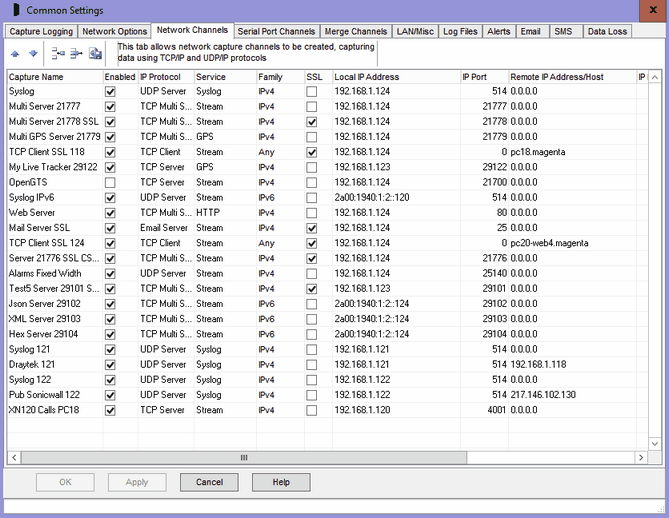
The Common Settings apply to all capture channels. Once these settings have been specified, OK or Apply should be clicked. This tab defines up to 999 network capture channels that are specified using a grid.
Grid Control Buttons
There are five buttons used to manipulate the Network grid:
Move Row Up |
Used to move the selected row higher up the grid. |
Move Row Down |
Used to move the selected row lower down the grid. |
Add New Row |
Causes a new blank row to be added at the bottom of the grid. |
Delete Row |
Causes the selected row to be permanently deleted. |
Copy Row |
Causes the selected row to be copied to a new row at the bottom of the grid. |
For a refresh install, a new blank row is automatically created. Note that the Network grid scrolls horizontally to show more columns. To add or edit the grid, click on the required box and an edit control of some sort will appear, perhaps a drop down box arrow, an edit field or numeric up/down arrows. Once the edit is complete, click on another box to ensure the edit is saved, losing focus from the grid causes the last edit to be cancelled.
Capture Name
The Capture Name uniquely identifies this capture channel, and is displayed on the main window tabs and in the information logs. It may optionally be added to each captured line and may be used as part of the file name for capture logs. Generally, the name should be as short as possible, while meaningfully describing the purpose of the channel. Note Capture Names must be unique for Serial Ports as well.
Enabled
The Enabled tick box determines whether this channel will be captured. If unticked, the channel will not appear in the main window. It’s typically used to temporarily disable a channel without deleting it.
IP Protocol
The IP Protocol is selected from a drop down box with the following options:
None |
No protocol is specified, the same as not enabling the channel |
UDP Server |
Listens for incoming UDP datagrams (or packets) on the specified local IP address and port. Two or more remote computers may send UDP datagrams to the same UDP Server. Note there no handshaking or error correction with UDP, packets may be lost or become corrupted without ComCap being aware. |
TCP Server |
Listens for incoming TCP Clients on the specified local IP address and port and negotiates a connection. A single TCP Server can only accept one connection at a time. If the connection is broken, the TCP Server may take several minutes before accepting a new TCP Client. Two or more TCP Server channels (with different Capture Names) may be set-up on the same local IP address and port (use the Copy Row button) and ComCap will assign remote TCP Clients to these channels sequentially, in the order in which they appear in the grid, optionally filtering on Remote IP address, and finally refuse the connection if there are no free TCP Servers. |
TCP Multi Server |
Listens for incoming TCP Clients on the specified local IP address and port and negotiates a connection. TCP Multi Server can accept hundreds of simultaneous remote clients, all capturing data to the same log file and optionally a database. It has been tested with 2,000 simultaneous SSL sessions, each sending one line per second. Although a large number of connections are supported, opening each new SSL connection does take a finite duration limiting the number of new connections per second. Testing seemed to show the SSL connection limit to be about 100 per second on a decent server, but this may vary significantly depending on hardware. Non-SSL connections have lower overhead, so many more per second. Most TCP clients will retry a refused connection, so should get connected when traffic is slower. If the capture data does not already uniquely identify the remote client, the 'Add Custom Text to Captured Lines' option in Capture Settings, Logging should be used to add the remote IP address or similar. |
TCP Client |
Originates a TCP connection to a specified remote TCP Server IP address and port. Optionally, the connection may be from a specified local IP address and port, but normally it will be a random port which is safer because ports remain in use for a few minutes when closed preventing re-use. TCP Client is always a single connection to one remote computer. If the initial connection fails or it drops unexpectedly, it will attempt to connect again according to the Retry Attempts specified below.
Windows TCP itself performs several attempts to make a connection, usually failing after about 40 seconds if the TCP Server does not respond. To reduce this period between attempts, ComCap by default first pings the remote computer with a timeout of only 10 seconds, before making the TCP connection attempt if the computer responds. The connection may still fail if there is no TCP Server listening, but this normally provided more rapid retry attempts. In rare cases, ping may be blocked by firewalls or routers, and may be disable in on the LAN/Misc Tab. |
Email Server |
Listens for incoming email on the specified local IP address and port, usually 25 or 587, and negotiates a connection. A single Email Server can only multiple connections and will capture the emails in the order completely received. Needs more settings on the Capture Settings, Email tab. Internet appliances that will send email to ComCap should have their SMPT Mail Server changed to this local IP address, or set-up DNS for this address. |
More information on protocols may be found in the Networking Tutorial.
Note TCP Multi Server is new with ComCap5, if you previously used several TCP Server channels it may make sense to replace these with a single Multi channel.
If high speed data is being captured, the TCP/UDP buffer size may be increased, see Network Performance on the Capture Settings Network tab.
Service
The Service is selected from a drop down box with the following options:
Stream |
Captured data is considered a continuous stream, not containing any specific service protocol. It may use any ports. |
HTTP |
Captured data is sent using the HTTP protocol used by web servers and browsers, currently headers are ignored and GET or PUT requests capture data supplied in the URL. POST data is currently ignored. |
GPS |
Captured data is to be processed as GPS packets, with the actual format set in Capture Settings, GPS. |
Syslog |
System logging is a service protocol typically used by networking appliances such as routers and firewalls, but also printers and software applications to remotely log data. Syslog is characterised by lines starting with a number in angle brackets, ie <99> sometimes followed by the data and computer name, the number is decoded by ComCap into facility and severity types that may be used to ignore routine data. Syslog normally uses UDP Server listening on port 514, but for improved reliability sometimes uses TCP Server on port 1468. |
Reliable Syslog |
Reliable System Logging is an improved version of Syslog. It is not currently supported by ComCap and we’ve not seen any internet appliances using it yet, but it will be supported when a means of testing it is found. . |
SNMP |
System Network Management Protocol Trap is a binary protocol used by internet appliances, mostly to signal errors and problems. It uses UDP Server on port 162. ComCap does not currently decode the binary packets, but this will be added in a forthcoming release. |
Avaya RSP |
Avaya RSP is a protocol used for telephone logging by Avaya telephone switches which is not supported by ComCap, but will when a means of testing it is found. |
Family
Specifies the IP address family, IPv6 will only be available if enabled on the Common tab.
Any |
Allows either an IPv4 or IPv6 address to be entered, or a Host Name. Local address must be selected from a list of any configured addresses on the PC (if more than one). |
IPv4 |
Requires IPv4 address only. Local address must be selected from a list of configured IPv4 address on the PC (if more than one). |
IPv6 |
Requires IPv6 address only. Local address must be selected from a list of configured IPv6 address on the PC (if more than one). |
Any IPv4 |
Will set the address to 0.0.0.0 |
Any IPv6 |
Will set the address to ::. |
SSL
The SSL tick box determines whether SSL/TLS is required for this channel, only for TCP Server, TCP Multi Server and TCP Client,
Local IP Address
The Local IP Address is selected from a drop down box that will be filled with all the IP addresses allocated to the computer (at least one, often more on servers) and also 0.0.0.0 and :: which means all IP addresses, depending on the Family specified above. For TCP and UDP Client, the Local IP Address can be left as 0.0.0.0 or ::, it only need to be set specifically if the remote TCP Server is expecting connections from a specific IP. For TCP and UDP Server, the Local IP Address is important since remote TCP and UDP clients will connect to it, so a specific address should be selected from the list. If SSL is enabled on the channel, a Domain Name and SSL/TLS certificate must also be specified in Capture Settings, Network Options which is what the remote clients will connect to. It is possible to use 0.0.0.0 or :: for servers, but this means ComCap will listen on all the IP addresses on the PC, which is not usually sensible.
Local IP Port
The Local IP Port must always be specified as non-zero for TCP and UDP Server, as a number between 1 and 65,536. Typically it will be 514 for Syslog, 162 for SNMP. Only one server can listen on the same port on the same PC, if a port is chosen that’s already being used by another application, the TCP or UDP server will fail to open. For TCP Client, the port is generally left as zero so Windows chooses a random port, but may need to set specifically if the remote TCP Server is expected connections from a specific port. If defining your own Local IP Port, use a high number between 10,000 and 65,000 to avoid conflicts with other applications.
Remote IP Address/Host
For TCP and UDP Server, the Remote IP Address is generally left as 0.0.0.0 or ::, meaning any, so connections are accepted from any remote computer. If multiple TCP Server channels are set-up listening on the same local IP address and port, the Remote IP Address may be used as a filter, so specific channels will only accept connections from specific remote IP addresses. If the multiple server channels are set-up, the first channel must have a 0.0.0.0 Remote IP Address so it can accept connections from anywhere. Do NOT specify the server domain name here.
For TCP and UDP Client, the Remote IP Address or Host Name must be set to that of the remote computer to which a connection should be opened. Family must be set to Any to use a Host Name, which means ComCap may connect with IPv4 or IPv6 depending on the family to which the Host Name resolves.
Remote IP Port
For TCP and UDP Server, the Remote IP Port is generally left as 0. If a Remote IP Address is specified to filter remote connections to this channel, the Remote IP Port may be specified as non-zero as well to further reduce the filtering to connections from that port.
For TCP Client, the Remote IP Port must be set to that of the TCP Server on the remote computer to which a connection should be opened, zero is not allowed.
Filter Information
Filter Information is currently not used.
Retry Attempts
For TCP Client only, Retry Attempts specifies the number of connection attempts that should be made to the remote computer before failing. Zero attempts means never stop, but keep retrying for ever, other the maximum attempts is 99.
Wait Seconds
For TCP Client only, Wait Seconds specifies the gap between a failed connection and the next retry attempt, with a minimum of 10 seconds and maximum of 300 seconds (five minutes). Note a connection attempt takes a minimum of 10 seconds, but about 40 seconds if ping is disabled. The more frequent the connection attempts, the more potential network traffic that is carried, but the lesser probability of lost data.
Channel Id
The Channel Id is fixed data and can not be edited. Ids are allocated sequentially as new network channels are defined, but remain fixed if channels are re-ordered or renamed in the grid. The Channel Id is used to identify settings in the configuration files comcap.config and comcap.current, ie [NET1], [NET2], etc.
Errors
When the OK and Apply buttons are clicked, the Network channels are checked and validated, and may result in the following errors:
Config Error: Local Port Must Not Be Zero |
For TCP and UDP Server, the local port may not be zero. |
Config Error: Listen must have blank Remote IP and Filter |
For multiple TCP and UDP Server channels on the same local IP and port, the first channel must has a 0.0.0.0 remote IP address. |
Config Error: Remote IP Address and Port Must Be Specified |
For TCP Client, the remote IP address and port must be specified. |
Must Specify Network IP Protocol |
If the channel is enabled, the IP Protocol can not be none. |
Must Specify Network Capture Name |
The Capture Name can not be left blank. |
Duplicate Capture Name – xxx |
The Capture Name must be unique between Network and Serial Port channels. |
Network Local IP Port Must Not Be Zero for Server |
For TCP and UDP Server, the local port may not be zero. |
Network Remote IP Port Must Not Be Zero for Client |
For TCP Client, the remote IP port may not be zero. |
Network Remote IP Address Must Be Specified |
For TCP Client, the remote IP address may not be blank. |